Conol 1.5.0 — A computer of your own
Conol
- release-notes
When an agent runs a program, opens a browser or works in a repo, it does that on a machine in the cloud. Until now, every chat got a machine of its own, called a sandbox, and nothing on it was visible to any other chat. This release replaces those with virtual computers that belong to you. A computer keeps what's on it between chats, each chat has to ask before it first uses one, and when the agent only needs to hand you a file, it no longer starts a machine at all.
Virtual computers that belong to you
Why. A sandbox per chat meant every new chat started on an empty machine. The repo you cloned yesterday, the tools the agent installed, the files it produced: all of it stayed behind in the old chat, and the agent set everything up again. It also meant one machine running for each chat that was busy, and each of them used credits while it ran.
A computer belongs to you instead of to a chat. You create it once, give it a name, and let the chats you choose work on it. What one chat leaves there is what the next one finds.
How to use it.
- Open Settings → Computers.
- Click New computer, give it a name, and pick a size: Small (2 vCPU · 4 GB) or Large (4 vCPU · 8 GB).
- That's all the setup there is. The machine itself starts the first time it's used, for example when a chat needs it or you open its desktop.
You can also skip this. The first time an agent needs a computer and you don't have one, its question includes Create my computer, which makes a Small one and uses it right away.
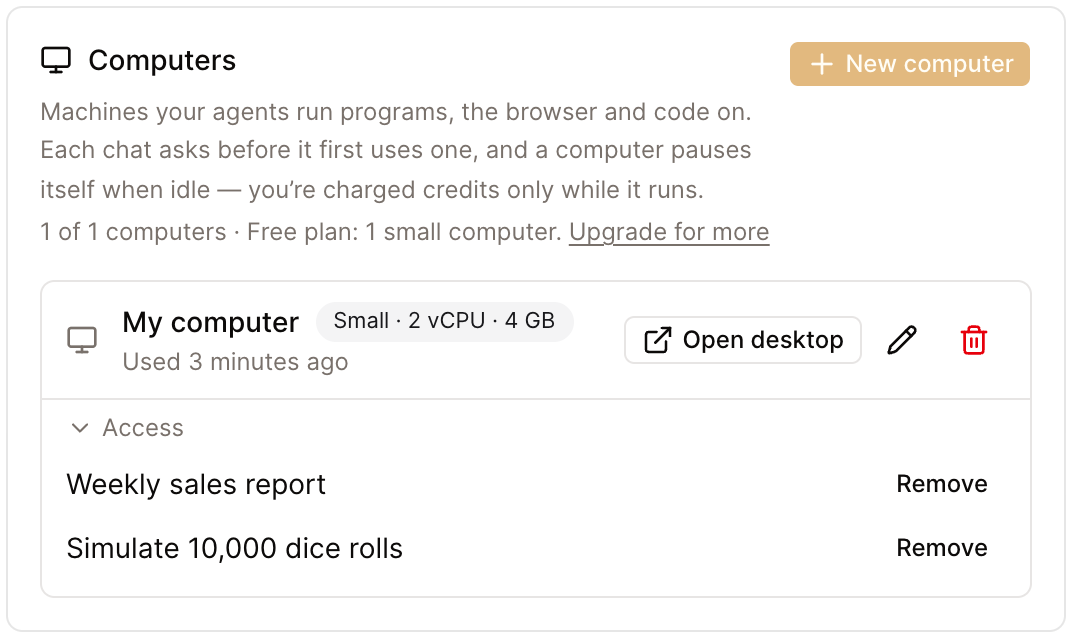
Each computer in the list shows its size and when it was last used. From there you can:
- Open desktop to see the computer's screen in a new browser tab. You can watch what the agent is doing there, or use the machine yourself. Opening the desktop wakes the computer, so it counts as running time.
- Access to see which chats may use the computer, with Remove next to each one.
- Rename it with the pencil, or delete it with the trash can. Deleting destroys the machine and every file on it, and can't be undone.
How many computers you can have depends on your plan:
| Free plan | Paid plans | |
|---|---|---|
| Computers | 1 | Up to 4 |
| Sizes | Small | Small and Large |
A few things to know:
- Cost. A computer uses credits for the time it runs, and Small costs half as much per minute as Large. It keeps running for about five minutes after its last use, then pauses itself with everything in place. A paused computer costs nothing, and it wakes up the next time a chat needs it. If you run out of credits, it can't start until you have credits again.
- Verified email. You need a verified email address to create a computer.
- Changing plans. If you move from a paid plan to the free plan, nothing is deleted. The Small computer you used most recently keeps working. The others stay in the list marked Needs a paid plan, and they work again when you upgrade.
Each chat asks before it uses your computer
Why. A machine that keeps its contents is more useful, and it also deserves more care. Whatever one chat leaves on it, such as files, scripts or changed settings, is what every later chat finds. So using your computer is something you allow one chat at a time. There is no "always allow" for all chats, on purpose.
How to use it.
- Ask for something that needs a machine, such as running code, cloning a repo or using a browser.
- The agent stops and a card appears in the chat: Allow this chat to use a computer? It shows the agent's reason, and the chat is marked Needs your input until you answer.
- Choose Use "My computer" (or whichever computer you want it to use), or Don't allow. If you have no computer yet, the card offers Create my computer instead.
- The agent carries on. Later messages in the same chat, along with its sub-agents and timers, don't ask again.
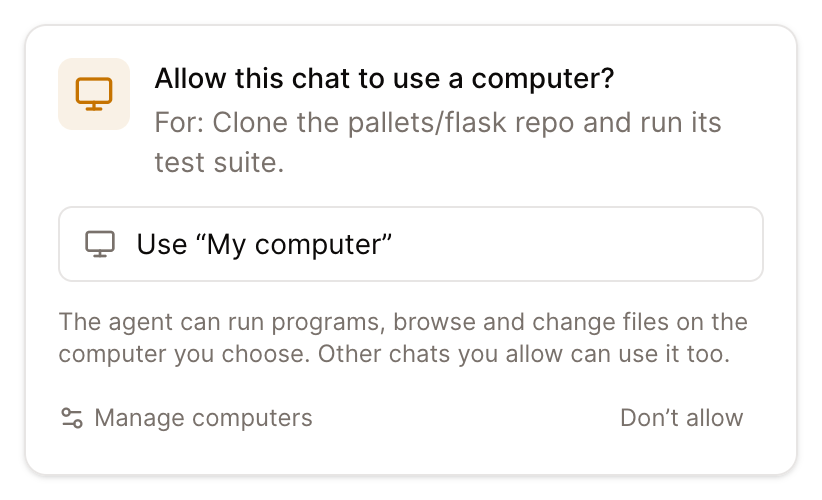
Your answer covers that one chat, so every new chat asks once. If you choose Don't allow, the agent continues without a computer and doesn't ask again during that reply.
You don't have to wait to be asked. Once a chat has started, its composer has a computer button next to the model. It reads No computer until the chat has one. Click it and pick a computer, and the chat is allowed from then on. Don't use a computer in the same menu takes the chat off its computer again.
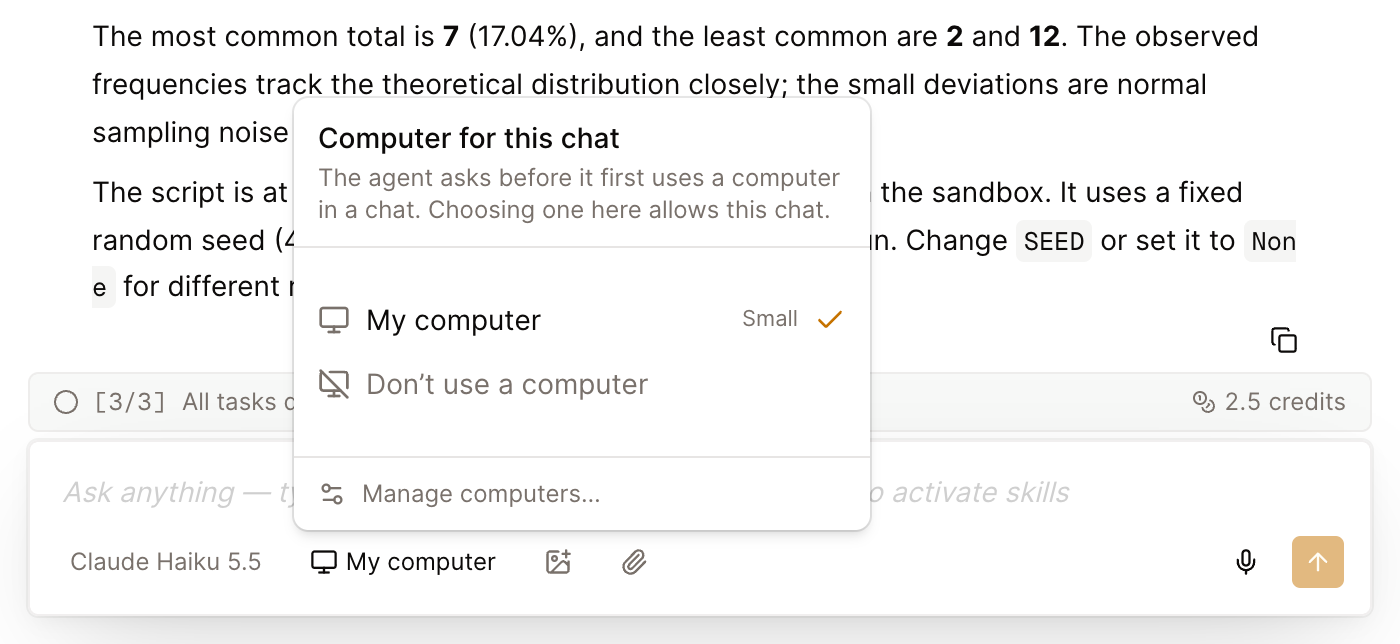
To see which chats can use a computer, open Settings → Computers and expand Access under it. Remove takes a chat off the list, and the change reaches the agent within about half a minute. A command that is already running finishes, and the next time that chat needs a machine it asks again.
Computers are created and managed in the web and desktop apps. In the iOS app you can answer an agent's request to use a computer, but you can't manage computers there yet.
In Telegram, WeChat and the other messaging channels there is no card. When the agent needs a computer there, it waits for your next message. Reply "yes" to let that conversation use the computer you used most recently (one is created if you have none), or "no" to decline.
Tip
Several chats can work on the same computer at the same time and see the same files. Only one chat at a time can control the desktop, meaning the mouse, the keyboard and the browser window. A second chat is told the desktop is busy, and it can use the command line or wait a minute.
Files without starting a machine
Why. A lot of requests end with "and give me the file": a report, a CSV export, a draft. Until now, the agent started a machine just to have somewhere to write that file. You waited for the machine to start, and you paid for its time, for what was really a file save.
How to use it. There's nothing to turn on. Ask for a file the way you always have. The agent now writes it to a file space that belongs to the chat and has no machine behind it, then hands it to you as a download in the conversation. A chat can hold up to 100 MB there, in files of up to 25 MB each. In a chat that hasn't used a machine yet, reading one of your installed skills no longer starts one either.
This covers files the agent can write directly, such as text, Markdown, CSV or JSON, and images it generates. The agent asks for a computer only when the work needs one, such as running a program, using a browser, working in a repo, reading a document you attached, or building a file that takes a program to produce, like a spreadsheet workbook. If it asks and a plain file was all you wanted, choose Don't allow and it will write the file without one.
Older chats keep their sandbox until December 10
Why. Every chat that ran something before this release still has its own sandbox, with its files on it. Those sandboxes are going away, and you decide what happens to each one. The dates:
- Until December 10, 2026, an older chat can keep using its own sandbox as before. If its agent asks for a computer anyway, the card also offers that chat's old sandbox.
- From December 10, 2026, an older chat has to ask before it uses a machine, like any other chat. Its card still offers that chat's old sandbox, so you can keep it or copy its files at that point.
- On February 8, 2027, every old sandbox that is still there is removed for good. If a chat you started in the app still has one, you'll get a reminder in your Inbox before that date.
A conversation in Telegram, WeChat or another messaging channel is different. It never kept one sandbox for long, so within about a week of this release it starts asking for a computer like a new chat.
How to use it. Open Settings → Computers. Chats that still have a sandbox are listed under Sandboxes from older chats, each with these choices:
| Choice | What it does | Who can use it |
|---|---|---|
| Keep as a computer | The sandbox becomes one of your computers, with its files and installed tools untouched, and the chat keeps using it. | Paid plans, while you have fewer than 4 computers |
| Copy files to "My computer" | Copies the sandbox's files into a folder under ~/imported/ on your computer, then removes the sandbox. The chat uses your computer from then on. | All plans |
| Download files | Downloads the sandbox's files as a .tar.gz archive. The sandbox stays until you discard it. | All plans |
| Discard | Deletes the sandbox and its files right away. | All plans |
A few details:
- The old sandboxes are the Large size. That's why keeping one as a computer needs a paid plan, and why it counts as one of your four.
- If you have no computer yet, the copy button reads Copy files to a new computer, and it creates your Small computer first. If the only computers you have are marked Needs a paid plan, there is nowhere to copy to and the button isn't shown, so download the files instead.
- A copy runs in the background and can take a few minutes. Copies and downloads take what's in the sandbox's home folder, up to 2 GB. They leave out caches and toolchains that can be reinstalled, such as
~/.cache,~/.npmand~/.nvm, and the sign-in and configuration files Conol sets up for the agent, which your computer gets fresh. - The list covers your 200 most recently active chats. A chat further back keeps its sandbox as well. From December 10, when that chat next asks for a computer, its card offers to keep the sandbox or copy its files.
Warning
If an older chat runs on a timer, keep or copy its sandbox before December 10. After that date, its runs can't use a machine until the chat has a computer.
← Back to blog