Conol 1.1 — Nothing the agent does to a note is final
Conol
- release-notes
The more you let the agent do, the more it matters that you can take any of it back. Until now, when the agent rewrote a note, the old version was gone. When a note was deleted, it was deleted for good. And if you typed into a note while the agent was working on it, the agent could write straight over you. Conol 1.1 fixes all three. Every change the agent makes to a note can now be undone, deleted notes can be restored, and your own edits win. This release also adds two new models, makes chats hold their connection, and fixes a handful of bugs.
Version history for notes
Why. Handing a note to the agent ("tighten this up", "restructure the plan", "merge these two sections") always carried a small risk. If you didn't like the result, or the agent misunderstood and rewrote more than it should have, the old version was gone. You had to ask the agent to put it back from memory, or rebuild it yourself. That risk made people hesitate to let the agent touch the notes that mattered most.
How to use it. There is nothing to turn on. Before the agent changes a note, Conol now saves a copy of how the note looked.
- Open the note's ⋯ menu, in the sidebar or the note header, and choose Version history.
- The list on the left shows each saved version, newest first, with when it was saved and why. For example, Before an agent edit.
- Click a version to preview it on the right.
- Click Restore this version to bring the note back to that state.
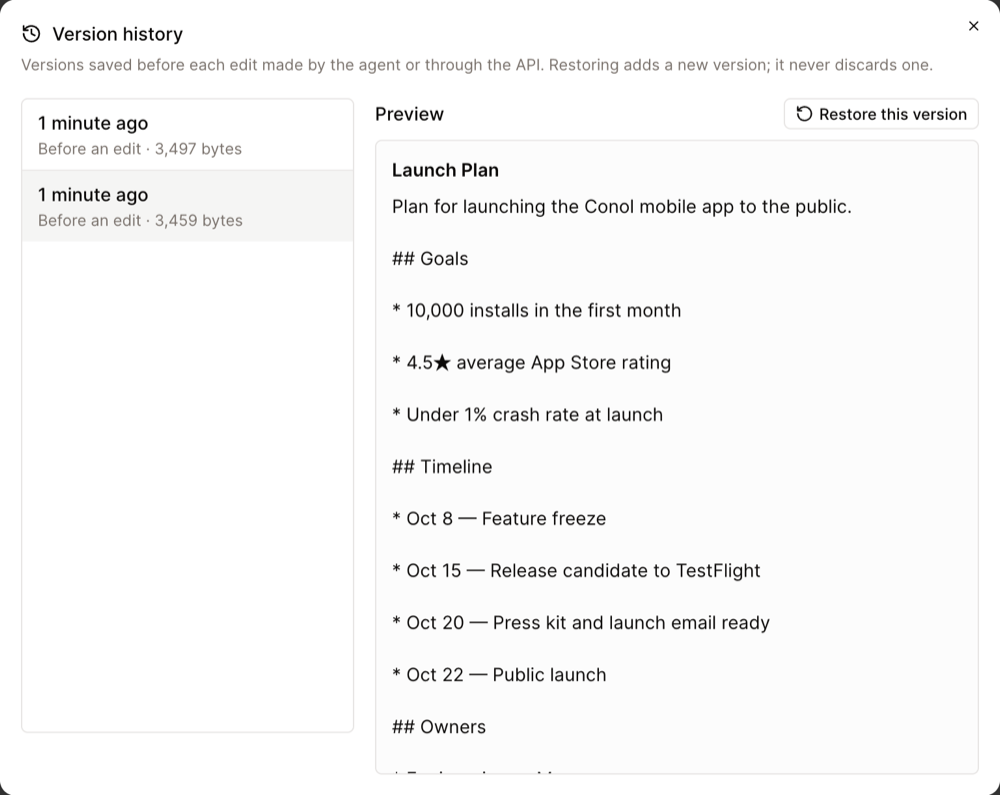
Restoring never throws anything away. Conol first saves the current content as a version of its own, so if you restore the wrong one, open Version history again and restore the version from just before.
Tip
Versions are saved before every change the agent or the API makes. Your own typing in the editor is already live and shared, so it isn't saved as a separate version. Restore a version and keep writing on top of it.
Undo an agent edit from the chat
Why. Version history is the right tool when you come back to a note later. Usually, though, you notice a bad edit right away, while reading the chat in which it happened. You shouldn't have to leave the conversation and hunt through a list to undo something you just watched the agent do.
How to use it.
- In the chat, click the line that summarizes the agent's work, such as Read a note, edited a note, to open its steps.
- Click the Edit note or Write note step to expand it. Below the diff you'll see Restore the version before this edit.
- Confirm, and the note goes back to how it was right before that edit.
If the agent made several edits in a row, restoring to before the first one undoes the later ones from that run too, along with anything changed after that point. The confirmation says so before you commit. As with version history, the current content is saved first, so you can undo the undo.
The same works for deletions. If the agent deleted a note, its step offers Restore the deleted note, which brings the note back with any sub-notes deleted along with it.
Recently deleted
Why. Deleting a note used to be permanent. One wrong click on a folder took everything under it, and so did one over-eager cleanup by the agent. There was no way back.
How to use it. Deleting a note now moves it, with its sub-notes, to Recently deleted instead of erasing it.
- Open the workspace's ⋯ menu in the sidebar and choose Recently deleted.
- Each entry is one delete. A deleted folder shows once, with a count like +3 sub-notes, not once per note.
- Click Restore, and the note and its sub-notes come back where they were.
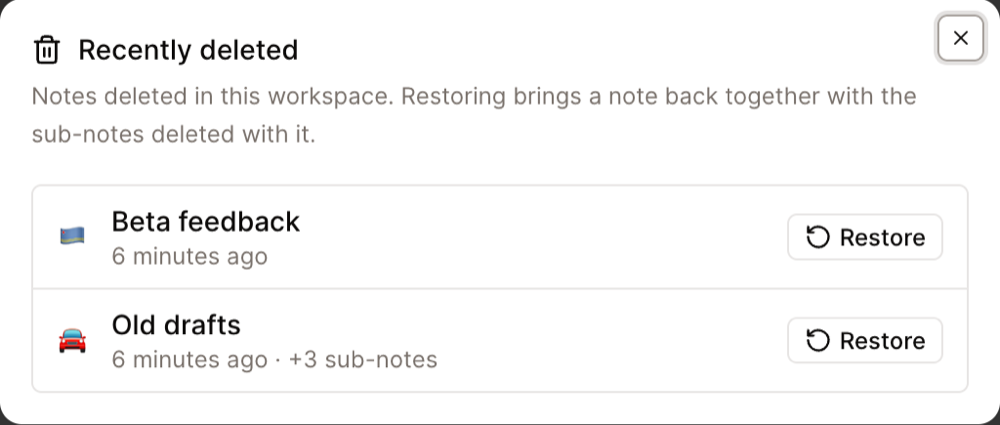
Notes deleted by you and notes deleted by the agent both land here, so you can review what the agent cleaned up and change your mind.
The agent won't overwrite your edits
Why. When the agent rewrote a whole note, it sent back its full version of the note, based on what it had read earlier. If you typed something in the meantime, maybe a minute earlier while the agent was still thinking, its older copy didn't include your change, and saving it quietly deleted what you'd written. This was the most serious kind of bug for a notes product: silent loss of your words.
How to use it. Keep working while the agent works. When the agent reads a note, it now remembers exactly which version it read. If the note changes before the agent saves, the save is refused, and the agent reads the note again and redoes its change on top of what you wrote. You don't have to do anything. Your edits stay.
Claude Sonnet 5.5 and GPT-6.1 Sol
Why. Anthropic and OpenAI each shipped a new mid-tier model at the end of September. Both are stronger than the versions they replace and cost the same.
How to use it. Open the model menu in the composer and pick Claude Sonnet 5.5 under Anthropic or GPT-6.1 Sol under OpenAI. You can also switch an existing chat to them mid-conversation.
- Both read images and handle about a million tokens of context.
- Both cost 1.00x, the same as our baseline model. GPT-6.1 Sol also charges less for cached context than GPT-6 Sol, so long chats come out a little cheaper.
- Both always think before answering. You can set how hard with the effort selector, but you can't turn thinking off.
- Like our other premium models, they need a subscription.
Claude Sonnet 5 is still the default, and GPT-6 Sol stays in the menu.
A chat that stays connected, and a Stop you can trust
Why. A chat streams the agent's work live. Until now, if that stream dropped (Wi-Fi switching networks, a laptop waking from sleep, a server restarting), the chat could simply stop updating while the agent kept working, and you had to reload to see what happened. Stop had a related problem: it cleared the spinner right away, even while the agent was still finishing its current step, and if stopping failed, nothing told you.
How to use it. Nothing to set up.
- Reconnecting. If the connection drops, the chat reconnects on its own, backing off between attempts, and fills in any steps it missed. If a chat truly can't be resumed, for example because it was deleted in another tab, you get a clear message saying why instead of a frozen screen.
- Stopping. After you press Stop, the composer shows Stopping… until the agent has actually stopped. If you try to send in the meantime, it asks you to wait. If the stop fails, you'll see Couldn't stop the agent — it is still running, so you know to try again.
Clearer questions from the agent
Why. When the agent stops to ask you something, the question often refers to a file, a command or a link. All of it showed up as plain text, so code read like prose and links weren't clickable. And if the agent asked a new question while you were typing an answer to the previous one, your reply could end up attached to the wrong question.
How to use it. Questions and their options now show bold, code and clickable links. Your answer is tied to the question you were looking at when you sent it. If that question was already answered or has expired, Conol tells you instead of sending your answer somewhere else. If the agent is waiting on a question and you type in the main composer, you can send your message as the answer.
Fixes
- No more silent stops. Some models occasionally ended a turn with only internal reasoning and no reply, so the chat looked finished but said nothing. The agent now tries again a few times, and if it still has nothing to say, it tells you the turn ended without an answer.
- Edits containing "$". When the agent replaced text with something that contained a dollar sign, such as a price, a shell variable or a regex, parts of the inserted text could come out mangled. This affected note edits, file edits in the sandbox and memory edits. Replacement text is now inserted exactly as written.
- Stronger passwords. Sign-up, password reset and change-password all apply the same check now. Common passwords, repeated characters, simple sequences like
12345678, and digits-only passwords are refused, with a message that explains why. - Safer files and links. Files you or the agent upload are served so they can't run as a web page in your browser. Links the agent fetches, along with images and attachments arriving from channels, can only reach the public internet.
- WeChat bindings. A small number of older WeChat bindings were stored with a server address that isn't WeChat's. Those now stop with a clear message instead of a generic error. If you see it, reconnect WeChat in Settings.
- Agent tools match your plan. The agent no longer offers tools your plan doesn't include, such as Code or media generation on the free plan, so it won't promise something it can't do.
← Back to blog