Conol 0.54.0 — The whole app, from your keyboard
Conol
- release-notes
Until this week, Conol had exactly zero global keyboard shortcuts. Every new chat, every session switch, every trip to Settings was a reach for the mouse. This release ships the whole layer at once — a command palette, a shortcut map that covers the app, and keyboard navigation for every list in the sidebar — plus a much cheaper flavor of GLM 5.3 and a small identity correction for our mascot.
Press ⌘K to go anywhere
Why. Getting anywhere in Conol meant clicking: the sidebar magnifier opened a small search popover that only searched, and commands like starting a chat lived on buttons scattered around the UI. If you know what you want, typing its name is faster than finding its button — that's the whole idea of a command palette, and Conol didn't have one.
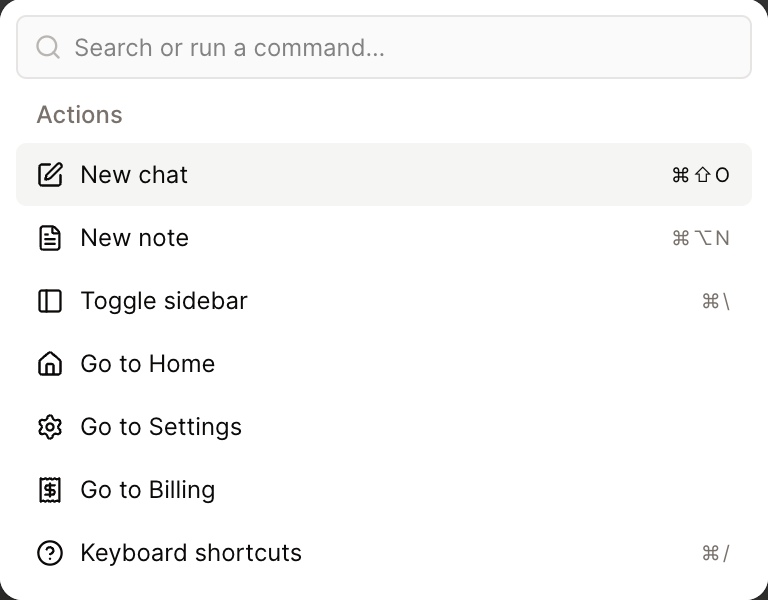
How to use it. Press ⌘K anywhere (or click the sidebar magnifier — it now opens the same palette). Type a few letters to filter your workspaces, notes, and chat sessions; Enter opens the highlighted result. With nothing typed, the palette lists actions: New chat, New note, Toggle sidebar, Go to Home / Settings / Billing, and the keyboard-shortcuts reference. The old search popover is gone — one surface does both jobs now.
Tip
Inside the note editor with text selected, ⌘K still does what writers expect: it creates a link. The palette yields to the editor there — same split Notion uses.
Keyboard shortcuts, everywhere
Why. Beyond the palette, the everyday verbs deserved keys of their own — and the most-requested one wasn't navigation at all. When an agent sets off in the wrong direction, watching it burn tokens while you hunt for the stop button is agony. Esc now stops the running agent, exactly like the terminal tools you're used to.
How to use it. The global map:
- Esc — stop the running agent (your caret stays where it was)
- ⌘Enter — send, always — even while a mention or slash-command menu is open
- ⌘⇧O — new chat, ⌘⌥N — new note
- ⌘J — open or close the chat panel, *⌘* — show or hide the sidebar
- ⇧Esc — jump back to the chat composer from anywhere
- ⌘⌥↑ / ⌘⌥↓ — previous / next chat session, ⌃1–9 — jump straight to a session by position (⌘1–9 in the desktop app, Alt+1–9 on Windows)
- PgUp / PgDn — scroll the conversation from the composer, ⌘⇧C — copy the last agent response as Markdown
Two ways to learn them: hold ⌘ for about half a second and badges appear next to everything a shortcut can act on — session rows even show their live digit binding — or press ⌘/ for the full reference.
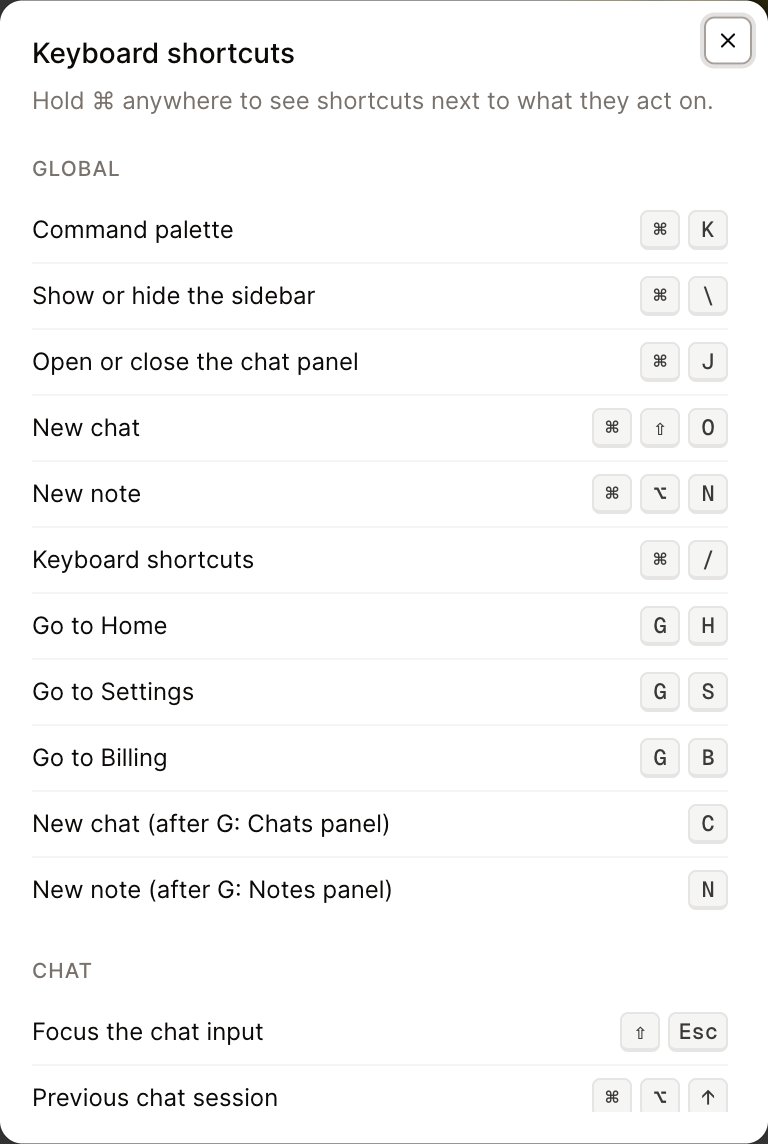
None of this fires while you're typing: inside any text field the letter keys are just letters, and Esc follows a sensible ladder — an open menu or dialog closes first, then a running agent stops, then the editor lets go of focus.
Browse the sidebar without touching the mouse
Why. Sidebar rows were mouse-only. Worse, the note tree rows weren't reachable by keyboard at all — they were plain divs, our worst accessibility gap. If you navigate by keyboard, half the app simply wasn't there.
How to use it. Click into (or tab to) the chat list, then: ↑↓ walk the rows, Enter opens, F2 or R renames inline, P pins, and Delete opens the same confirm dialog the ⋯ menu uses. The note tree works the same way, plus → expands a note (or steps into its children) and ← collapses. Quick jumps ride on a G prefix: G then H, S, or B goes to Home, Settings, or Billing; G then C or N switches the sidebar between Chats and Notes panels. And when you're not in a text field, a plain C or N starts a new chat or note.
GLM 5.3 Flash: the fast lane
Why. We added GLM 5.3 in the last release; it's a strong model that always reasons before answering — which makes it overkill for quick questions and expensive for high-volume work. Its new Flash sibling (until recently the "Ox Alpha" stealth model, now confirmed as Z.ai's and open-sourced) keeps the useful parts and cuts the price to roughly a twentieth.
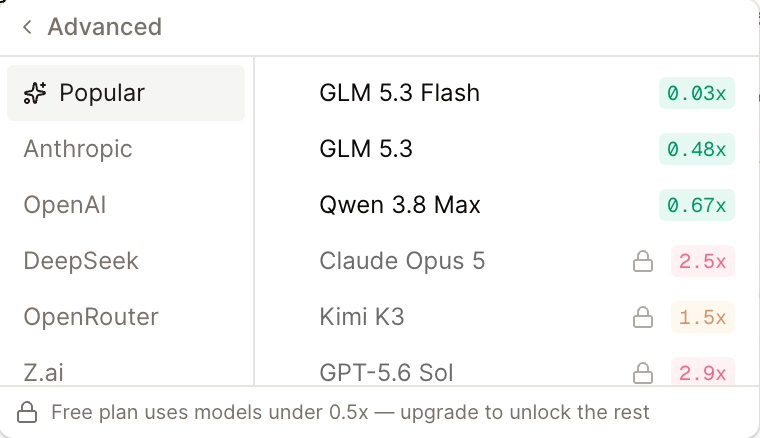
How to use it. Open the model picker in the composer → Advanced → it's at the top of Popular (also under Z.ai), showing at 0.03x next to GLM 5.3's 0.48x. Same 1M-token context window, and it reads images and video. Launch pricing runs through September 9; it gets a bit pricier after that but stays in the same league.
Our mascot found its true face
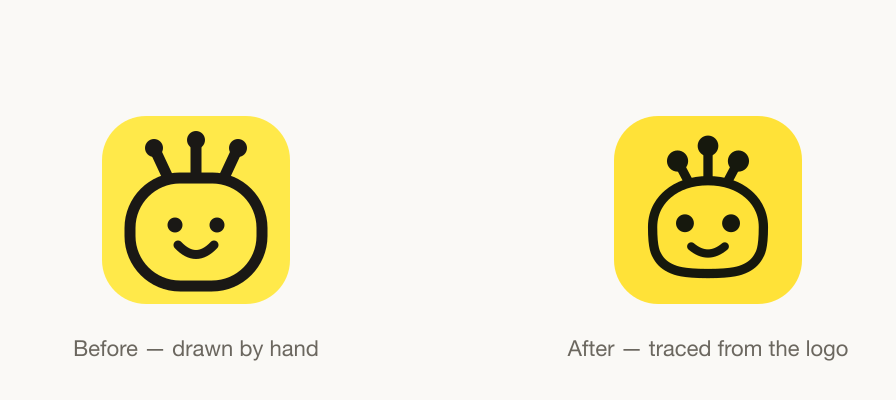
Why. The little robot that greets you on the login page and at the top of Home was drawn by hand, separately from the logo — and it had drifted: antennas splayed too wide, eyes too small and close together, a boxier head, and even a slightly different yellow. Side by side with the logo, they read as cousins, not the same character.
How it was fixed. We traced the logo mark itself — the exact head shape (rounder on top than at the bottom, it turns out), antenna geometry, and colors — and redrew the in-app mascot from that tracing. The blink and the antenna wave stayed. You don't need to do anything; the face that greets you is now the one on the tin, everywhere it appears.
Fixes
- Unaffordable messages are refused up front — a message your credits can't cover is now declined before the model runs, near-instantly, with a message that names the model and a way to top up. Previously the answer ran anyway and could push your balance into the red. The pre-flight check is deliberately generous with its estimate, so borderline turns still run — the refusal is for messages that clearly can't be covered.
← Back to blog