Conol 0.50.0 — Your CRM, your language, your colors
Conol
- release-notes
This release is about things arriving intact — your CRM data reaching the chat, your inbox speaking your language, your colors surviving a share link, and your Chinese and Japanese filenames staying readable. Plus a new connector, live reasoning, and a solid batch of iPhone work.
Attio — let your agent work your CRM
Why. Conol could already reach HubSpot, but if your team runs on Attio your agent had no way in. Every lookup, every call note, every "add this company" meant leaving the conversation and doing it by hand — which is exactly the kind of context-switch the agent is supposed to absorb. Attio's default managed permissions are read-only and leave notes out entirely, so we deliberately widened them before launch to cover records, notes, list entries, tasks, and comments. Your agent can actually write, not just read.
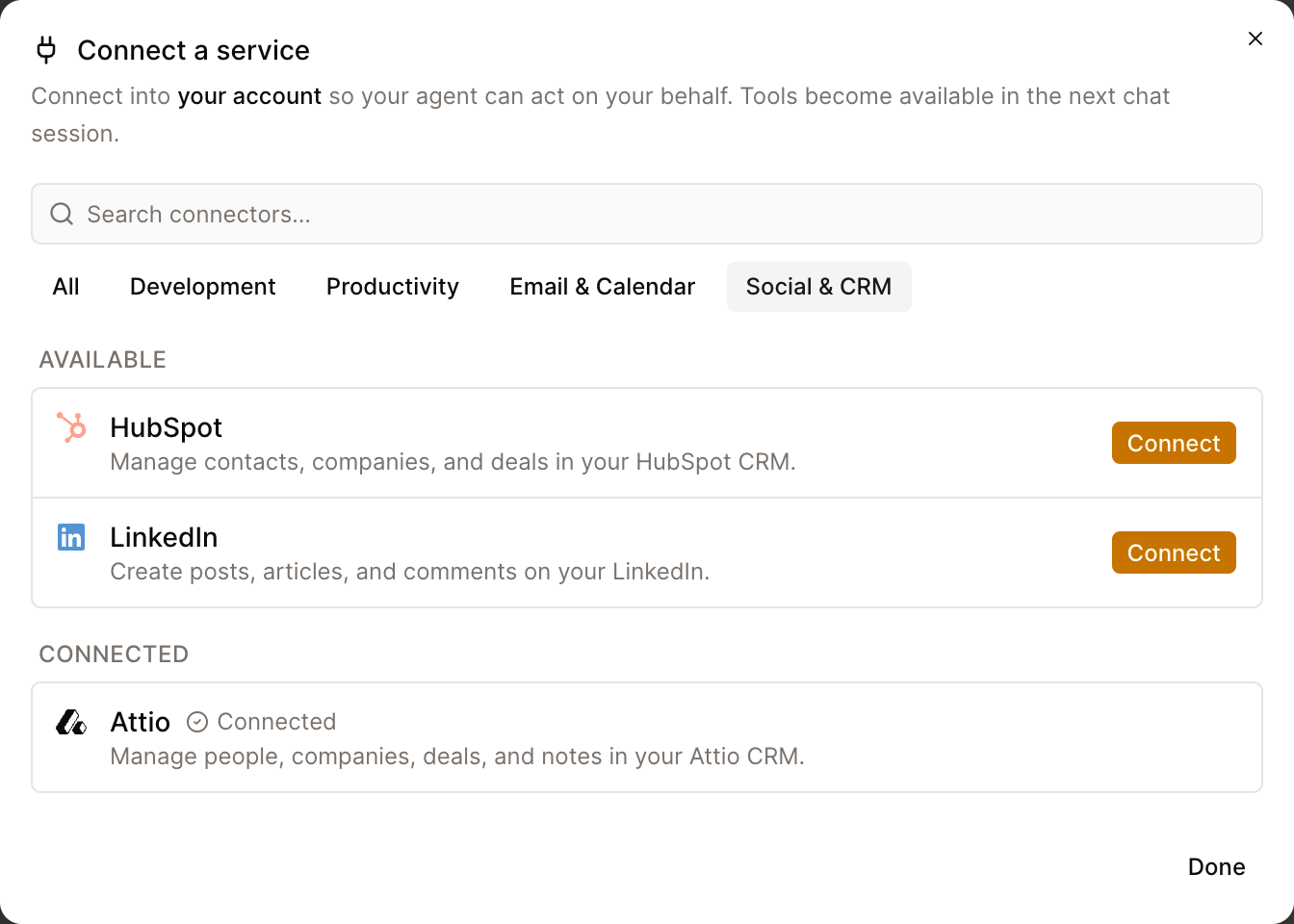
How to use it. Open the sidebar, switch to the Connectors & Secrets tab, and press + on the User group. Find Attio under Social & CRM (or type "attio" in the search box) and press Connect. You'll land on Attio's own sign-in and consent screen, where you choose which Attio workspace to grant, then come back to Conol with Attio marked as connected. There's no API key to paste and nothing to configure — you just need an existing Attio account.
The new tools become available in your next chat session, so start a fresh chat and try something end to end:
Add Acme Corp as a company in Attio, log today's call as a note on their record, and create a follow-up task for Friday.
Tip
If you'd rather one Attio connection serve your whole team instead of just you, workspace owners can press + on the workspace's group rather than the User group.
Generated media plays where it lands on iPhone
Why. On iPhone, anything the agent generated came back as a collapsed blob of raw text. The picture never appeared, the clip never played, and the only way to reach the file was to read a URL out of the text by hand — there was no download and no copy. The web app had been rendering these as real media for a while; the phone simply had no renderer for them.
How to use it. Ask the agent to generate an image, a video, or a voice clip in the iOS app. The result now appears in the reply as the real thing: pictures render inline, video gets a player with proper controls, and audio gets a compact play/pause row. Under each item is a tappable row with the file name and size that opens the iOS share sheet — Save to Files, Save Image, or Copy the link. The prompt that produced the media is shown above it, and if part of a batch failed to upload, it says so instead of quietly going missing.
While we were there we added a viewer for every image in a chat: tap any picture to open it full screen, pinch to zoom up to 6x, drag to pan, double-tap to snap between fit and close-up, and swipe down to dismiss. It works on images you attached, images the agent sent back, screenshots from tools, and generated media alike.
Watch the agent think, live
Why. Reasoning was always tucked behind a collapsed "Thinking…" line you had to click open. On a capable model turned up to high effort, that meant staring at a single grey line for minutes with nothing visibly happening — indistinguishable from a chat that had frozen. The information was there; you just couldn't see it without hunting for it.
How to use it. Open any chat, pick a model that supports thinking, and raise Effort to High or Max in the model menu. Ask something that takes real reasoning. While the agent works, the thinking block under its reply is open and streaming, so you can read along; the moment the answer starts, it folds itself away so finished conversations stay short and scannable. Click a block at any time to pin it open or closed — your choice wins and stays put, so collapsing a noisy live block won't be undone by the next token. Expand a running sub-agent's log and you'll see the same live reasoning there.
The same work fixed a quieter problem: models at high effort regularly go silent for well over 90 seconds while reasoning, and the chat used to treat that silence as a dead connection and cut the answer off partway through — precisely on the hardest questions where the thinking mattered most. The allowed quiet stretch is now three minutes, so those answers finish.
The Flash tier runs DeepSeek's newest build
Why. The Flash tier was still on the April build of DeepSeek V4 Flash even though a refreshed build shipped on July 31 — picking Flash meant getting an older model at the same price. We kept Flash's credit cost exactly where it was rather than chasing the single cheapest provider: paying the fast-tier rate is what lets your Flash requests keep routing to whichever of eight providers is quickest at that moment, instead of being pinned to one host that could slow down or drop out. So this lands as a newer model at the same price, not a cheaper one on a fragile route.
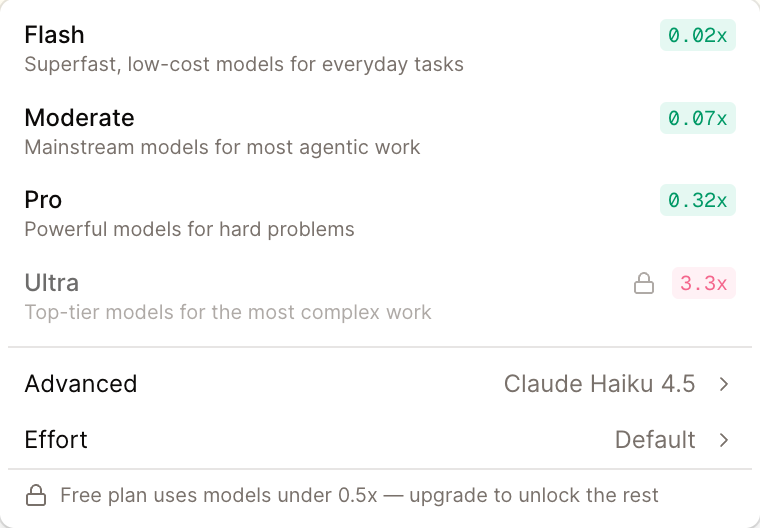
How to use it. Nothing to do — pick Flash in the model menu as before, or choose DeepSeek V4 Flash directly from the per-model list. Saved defaults and existing Flash chats carry over automatically. Everything else about Flash is unchanged: the same million-token context, the same credits per token, and the same automatic switch to Gemini 3.5 Flash as soon as images enter a chat.
Free plans start on a model you can actually run
Why. A new chat on a free plan showed Claude Sonnet 5 as the selected model — but Sonnet 5 is above the paid-only threshold, so every one of those chats was quietly swapped to a cheaper model behind the scenes. The picker was telling you something untrue on the very first screen of every conversation.
How to use it. Nothing to do. New free-plan chats now start on Claude Haiku 4.5, so the model shown is the model that answers. The same correction covers stale saved choices: if you set a paid-only model as your default while subscribed and later lapsed, you now fall back to something usable instead of staring at a locked pick. Paid-only models stay visible with a lock so you can still see what upgrading unlocks, and paying accounts keep the Sonnet 5 baseline exactly as before.
Your language, your colors, your characters
Why. Three separate things were quietly losing information on the way to someone's screen.
The inbox was half-translated: the panel around it followed your language setting, but the notices inside were written in English when they were created and stayed English forever. If you use Conol in Japanese or Chinese, you opened a translated frame wrapped around an English message.
Shared notes lost their colors. Colors existed only while you were editing — a share link rebuilds the note from plain markdown, which has no concept of color, so every colored word and highlight arrived at your reader as ordinary black text. The emphasis you were relying on simply wasn't there for the person you sent the link to, with no sign anything had been lost.
Text files were served without saying they were UTF-8, so browsers fell back to a legacy Western encoding and multi-byte characters turned to mojibake — a note titled 声音意义判定 · 算法层探索项汇总 opened as 声音æ„义判定. The files were never damaged; only the way they were served.
How to use it. All three are automatic. Inbox notices — quest rewards, workspace invitations, connector-reconnect alerts — now render in whatever language you have set, buttons and role words included, and re-render when you switch languages instead of staying frozen. Shared note pages show text and highlight colors in the same palette as the editor, in light and dark mode, including inside bold and italic text. And text files open as written, including ones uploaded before this release — nothing needs re-uploading.
Two deliberate exceptions on the inbox: notices you received before this update keep their original English wording, and anything your agent wrote itself — timer reminders, nudges, summaries — is left exactly as written, since it's already in the language of that conversation.
More iPhone fixes
Why and how. Four smaller things that made the phone feel behind the web:
- Long chats looked truncated. Sessions opened on the most recent stretch with no way to ask for anything earlier, so a long conversation looked like it had lost history next to the same session on the web. Scroll to the top and tap Load earlier messages — your place is kept, so you aren't thrown back to the newest message, and you can keep walking backwards.
- Messaging-channel transcripts looked writable. Opening a Telegram or WeChat conversation showed a normal message box, so you could type a reply, send it, and watch it fail. Those conversations are transcripts; replies have to go from the messaging app. It now says so plainly instead of letting you walk into a dead end.
- Every note looked like it had children. The note tree drew an expand arrow on every note whether or not anything was inside, so ordinary notes looked like unexplored branches and tapping opened nothing. The arrow now appears only when a note really has sub-notes, and it updates the moment you add or delete one.
- Credits were three bare numbers. "Plan 1,240" told you nothing about whether that was most of the month or the last of it. On a paid plan the card now reads as remaining out of your total allowance with a "resets in N days" caption, and the other buckets are labelled "Resets daily" and "One-off".
Outlook also now appears in the iPhone connector list under Email & Calendar — it had been connectable on the web all along but was missing from the phone's catalog entirely.
Fixes
- Sending a note to Slack — your Slack conversations appeared in a note's share list, but choosing one failed with an error and the link never arrived. It works now, with long messages split so nothing is cut off.
- Clicking below the last line — clicking the empty space under a note used to blur the editor and drop your cursor. It now puts the cursor at the end so you can keep typing, adding an empty paragraph if the note ends with an image or table.
- Selecting across media — dragging a selection over an image painted a full-width band across the editor column. The highlight now hugs the image, video, or file at its displayed size, the way it hugs words.
- Which account am I in? — your email address appeared nowhere in the web app, so the display name was the only clue. It now shows in the account menu under your name and beside your avatar in Settings.
- A way back from Billing — Billing was the one settings page with no way back, which especially hurt in the desktop app where there's no browser chrome to fall back on. There's now a back arrow next to the page title.
- Production storage — on July 30 the production database ran out of disk and writes began failing. Storage has been raised well beyond current use and now grows automatically, so a heavy day can't run it dry again.
← Back to blog