Conol 0.43.0 — Workflows you can watch, and thinking effort you can dial
Conol
- release-notes
This release is about giving the agent more structure for big jobs, and giving you more control over how it works. Complex, multi-part tasks now run as real workflows — parallel, branching, and visible as a live graph — instead of one long serial slog. You can dial how hard a model thinks, per chat. And a few smaller touches make Conol feel more like yours.
Your agent runs big jobs as live workflows
Why. Some jobs are naturally not a straight line. "Digest the top ten Hacker News stories" is ten independent classifications that should run at once, not one after another. "Draft this under 180 words" is a loop — write, check the count, tighten, repeat until it fits. "Research this three ways and take the best" is a race. Done as a single serial conversation, these are slow and hard to follow: you can't tell which parts are done, and the agent spends its context grinding through work that didn't need to be sequential.
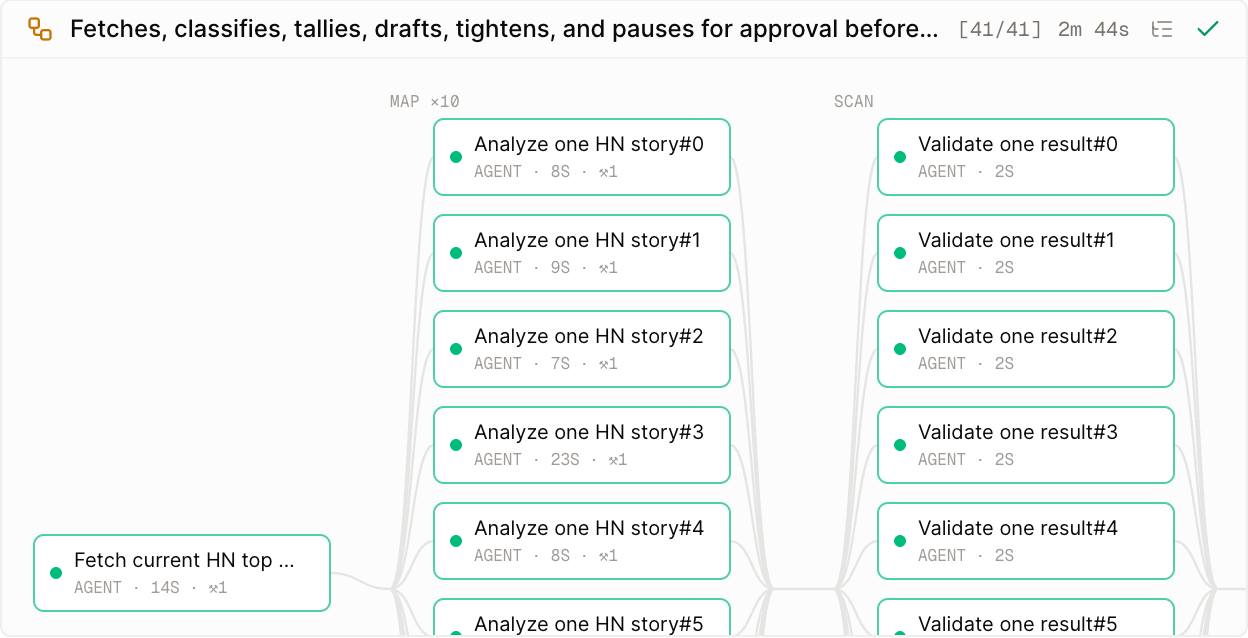
How to use it. Just describe the shape of the work in plain language — "do the per-story work in parallel", "keep tightening until it's under 180 words", "pause and ask me before you save" — and the agent builds a workflow to match. Under the hood it has a small set of building blocks it composes into a tree:
- Parallel and map fan work out — run branches at once, or run one template over every item in a list.
- Race runs approaches against each other and keeps the first good result.
- Loop repeats a step until a condition holds; scan folds streaming results into a running total as they arrive.
- Route picks one branch based on what an earlier step found.
- Human pauses for your approval, and sleep waits — both durable for days.
You watch the whole thing progress in the chat, either as a tree or as a graph, with every branch's status and timing live. The run below fetched ten HN stories, classified all ten in parallel, kept a running category tally, drafted a digest, looped to hit a word limit, and paused for sign-off before saving — and you can see each piece finish on its own.
Tip
You don't have to think in terms of "workflows" at all — just ask for the outcome and say which parts should happen together or repeat. The agent decides when a job is worth structuring this way and falls back to a normal conversation when it isn't.
Dial how hard a model thinks
Why. Not every question deserves the same amount of reasoning. A quick lookup wants a fast answer; a thorny debugging problem or a tricky plan is worth letting the model think longer and harder. Until now that decision was baked into each model — you couldn't ask the same model to try harder on the problem in front of you.
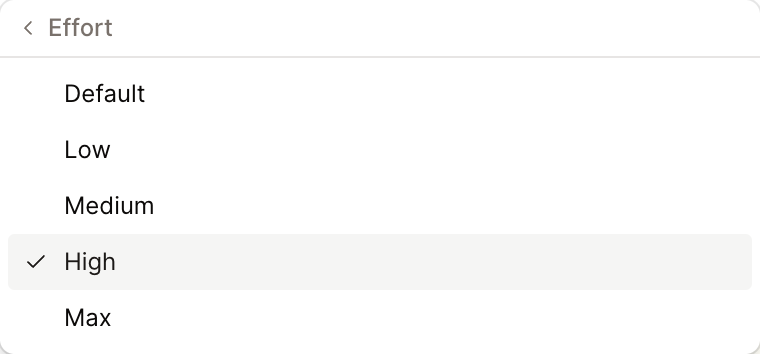
How to use it. Open the model picker in the composer and you'll see a new Effort control next to the model. Pick a lighter level for speed, or High and Max to have the model reason more deeply before it answers. It's set per chat and you can change it mid-conversation — the next turn uses the new setting. Each model only offers the effort levels it genuinely supports, so you'll never pick a level that does nothing.
Add a profile picture
Why. Conol shows your name across the app and to the people in your shared workspaces, but until now everyone was an anonymous initial. A picture makes shared spaces easier to read at a glance and the app feel more like yours.
How to use it. Go to Settings and, under Profile picture, either upload a photo or import the one from your Google account in a single click. It appears in the sidebar and anywhere your account shows up to workspace members.

Your avatar and name in the sidebar
Why. The top of the sidebar used to show the Conol logo and a version number — useful to us, not to you.
How to use it. Nothing to do. Once you've set a profile picture (or even before, as your initials), the sidebar header shows your picture and name instead. It's a small change that makes the workspace feel a little more personal every time you open it.
Fixes
- Scheduled sessions show what they'll actually do — a chat's label comes from what the agent is currently working on, which the agent updates as topics change. In a session with a recurring timer, chatting about something else could relabel the whole session — so when the timer later fired, its reminder showed up under an unrelated title. Scheduled sessions now show the timer's own mission in the sidebar and in their notification, no matter what else you've discussed in that chat.
- A clear error when a name is already taken — renaming a note or workspace to a name that already exists used to silently do nothing, leaving you unsure why the change didn't stick. It now shows a clear message.
- Stuck sessions recover on their own — a rare hiccup could leave a session or a workflow wedged with nothing to nudge it forward. A watchdog now detects these and gets them moving again automatically.
- Header menus open where they should — after moving between pages, the account and other header menus could anchor to the wrong spot on first open. They now open in the right place every time.
- Cleaner iOS experience — a batch of iOS fixes: light-mode navigation titles and editor theming render correctly, the inbox behaves, and voice input is more reliable.
← Back to blog