Conol 0.40.0 — See more, share safely
Conol
- release-notes
This release is mostly about polish and trust: a proper image viewer so you can actually look at what your agent makes, a safety net for messages that fail to send, and firmer guarantees that a workspace viewer can only ever view. Alongside those are a batch of fixes from our test rounds.
A full-screen image viewer
Why. Agents generate a lot of images — mascots, diagrams, mockups, screenshots — and until now the only way to really look at one was to download it or squint at the inline thumbnail. There was no way to zoom into a detail, straighten a rotated scan, or flip through a set of generated variations without leaving the chat.
How to use it. Click any image in a chat to open it full screen. From the toolbar you can zoom in and out, drag to pan around a zoomed image, rotate it, and use the arrow keys (or the on-screen arrows) to step through every other image in the same conversation. One click saves it to your device or copies it to the clipboard, and you can pop it out to a new tab. Press Esc or click away to close.

Resend a message that didn't go through
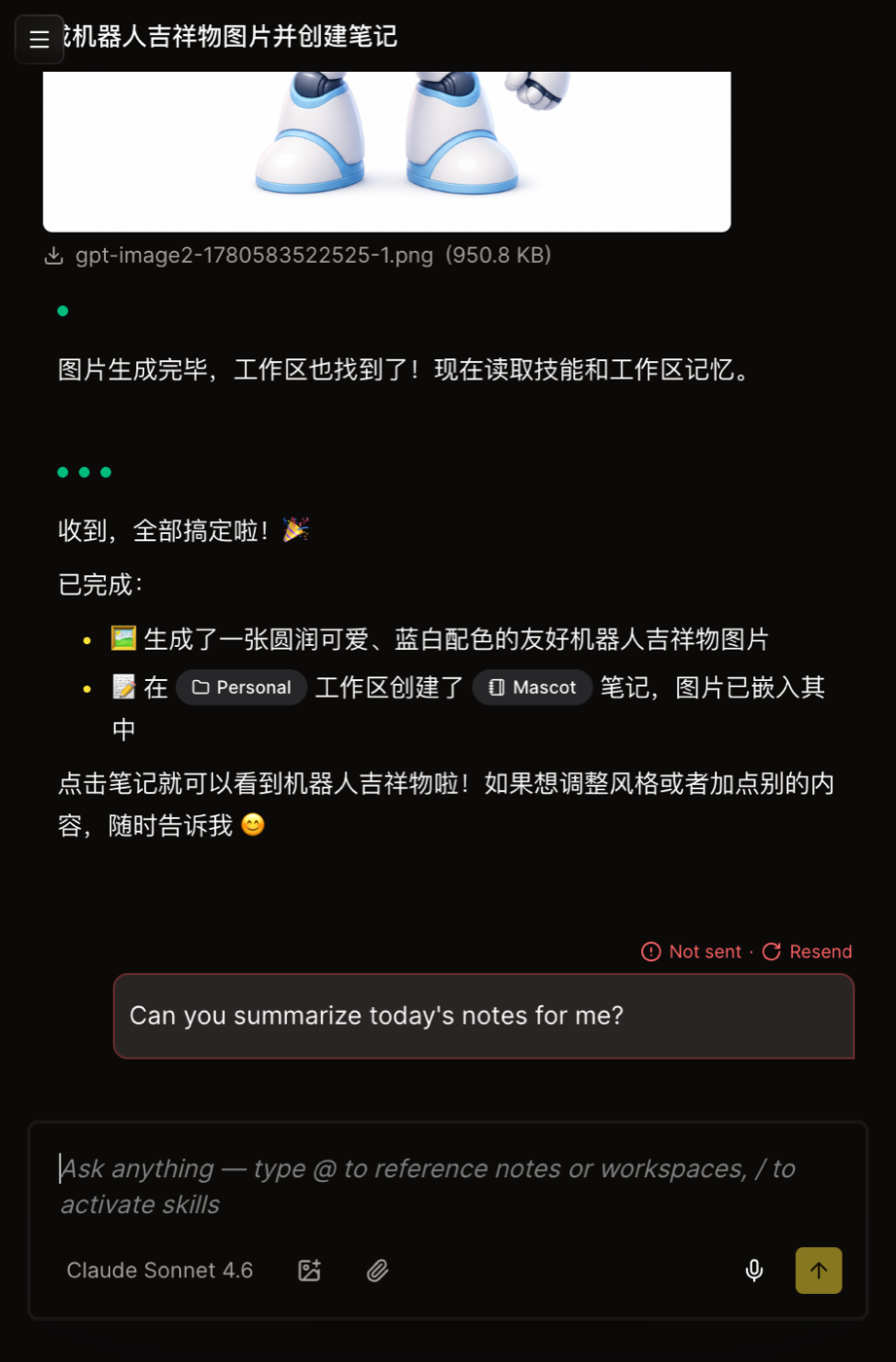
Why. If your connection dropped for a second while you hit send, the message used to just… vanish — no error, no trace, and no way to know it never left. You'd only find out when no reply came, and then you'd have to retype the whole thing.
How to use it. Nothing to turn on. If a send fails, the message stays in place, marked "Not sent" with a red Resend button right above it. The moment you're back online, click Resend and it goes out as-is — no retyping, and it keeps its spot in the conversation instead of jumping to the bottom.
New model: Tencent Hy3
Why. Different models have different strengths and different feels; the more you can swap between them per chat, the better you can match the model to the task.
How to use it. Open the model picker in the composer (or Settings) and choose Tencent Hy3 — it's served through OpenRouter, so no extra setup is needed. You can switch models mid-conversation as always.
Viewers can look, but not change
Why. When you share a workspace as read-only, "read-only" should mean exactly that. But a viewer could still open a memory file or a skill, type into it, and watch it "save" — only to have it silently roll back on the next reload. Worse, a viewer could ask the agent to edit a note through chat and it would go through, quietly bypassing the whole point of the viewer role.
How to use it. Nothing to configure — it just holds now. If you're a viewer in a shared workspace:
- Notes, memory, and skills open read-only, clearly marked with a "Read-only" badge. The editor won't accept keystrokes, and destructive actions like Delete or Uninstall are hidden.
- The agent respects your role too. Asking it to write, edit, or delete a note in that workspace is refused server-side — it can still read and summarize, just not change anything.
Owners and editors are completely unaffected; this only changes what viewers can do.
Tip
Not sure what role you have in a shared workspace? Open the workspace in Settings — your role is shown next to your name in the members list.
Fixes
- Inbox actions that do nothing — "View quests" now takes you to your quests instead of no-op'ing, and a notification you've already handled no longer shows dead Accept/Decline buttons under the "All" filter.
- Search keyboard navigation — the up/down arrow keys now move the selection one result at a time instead of skipping two.
- Search & name length — the search box is capped at a sane length, and workspace names now have a limit and no longer draw a red spellcheck squiggle (they're names, not prose).
- Bold/italic next to CJK punctuation — Markdown emphasis like 加粗 now renders correctly when it sits right against Chinese, Japanese, or Korean punctuation.
- Deleted timers no longer linger — deleting a scheduled timer no longer leaves its chat looking like it still has one pending.
← Back to blog