Conol 0.37.2 — See your agent's plan, and its headroom
Conol
- release-notes
Agents in Conol plan before they work — but until now that plan lived buried in the transcript, and you had no idea how close a long conversation was to the model's memory limit. 0.37.2 puts both right where you're already looking: just above the message box.
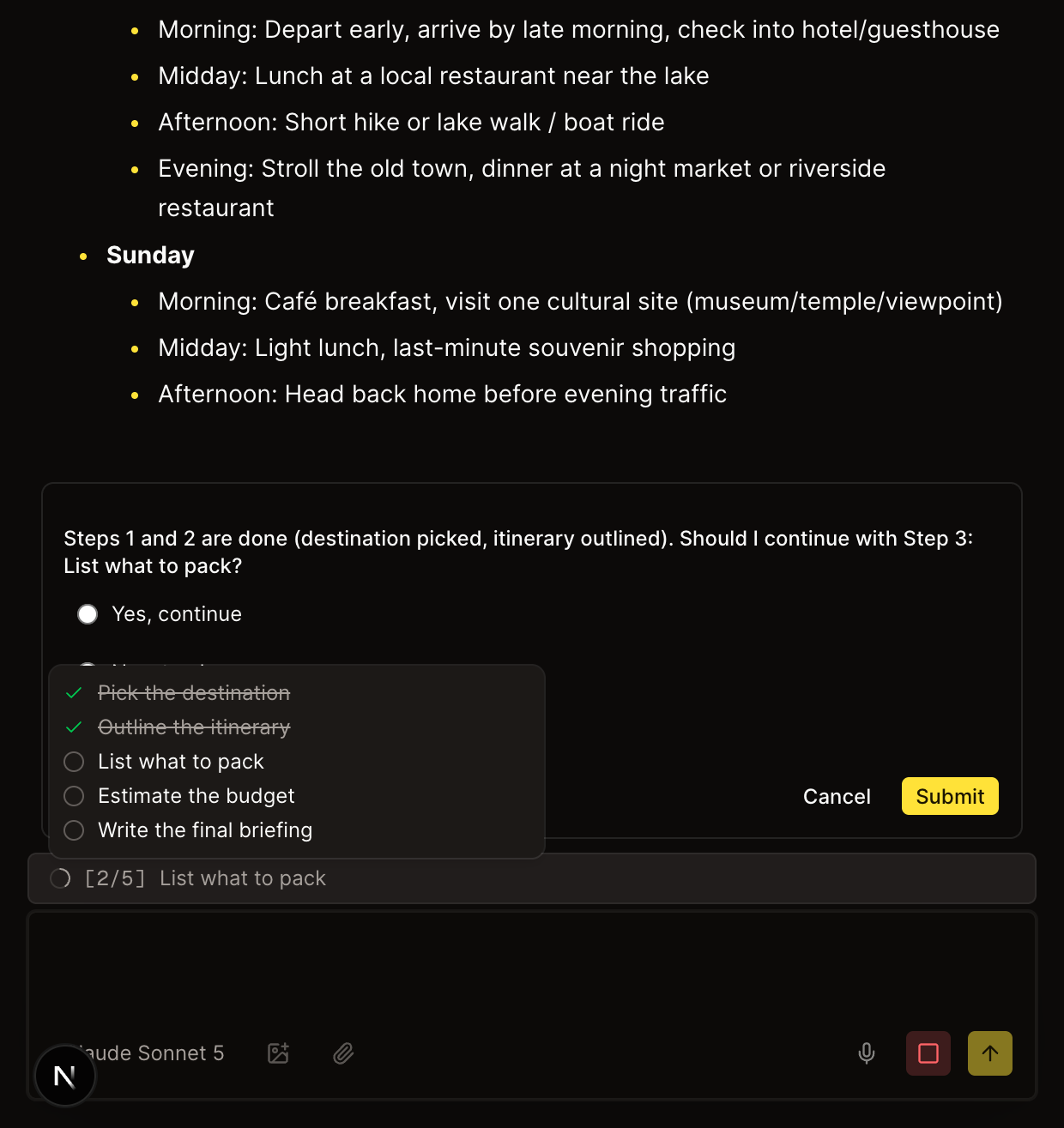
Plan progress and context meter above the composer
Why. When you hand the agent a multi-step task, two questions follow you through the whole session: how far along is it? and is this conversation getting too long? The answer to the first was scattered across the transcript — you had to scroll back to find the plan and work out which steps were ticked off. The answer to the second was invisible: a session that quietly filled the model's context window would just start failing, with no warning that it was time to wrap up.
How to use it. There's nothing to turn on. As soon as the agent sets a plan, a slim strip appears pinned above the message box showing progress like [2/5] along with the step it's working on now. Hover the strip to see the whole checklist — completed steps struck through, remaining steps queued up — and watch it tick along live as the agent works. When the plan is done, it reads [5/5] All tasks done.
The same strip is home to a new context meter. Models have a finite working memory (the context window), and very long sessions — or ones with lots of attachments — can fill it. Once a conversation crosses 60% of the model's window, a Context: NN% readout appears next to the plan; it turns amber at 85% and red at 95%. Hover it to see the exact token count and model. When you see it climbing, that's your cue to wrap up the thread or start a fresh session for the next task — before the model starts forgetting or requests start failing.
Fixes
-
Send button now waits for actual content. The Send button stayed enabled when the message box was empty or held only spaces and newlines, so a stray click fired a blank message at the agent. It now lights up only when there's something real to send.
-
Collaboration cursors show who's really there. When teammates edited a note together, the colored cursors could all be labeled "user", making it impossible to tell who was typing where. Cursors now carry each collaborator's real name.
-
Workspace Skills & Memory respect roles. Members with the viewer role could add or edit a workspace's agent Skills and Memory — content that shapes how the agent behaves for everyone in the workspace. Writing them now requires an owner or editor role, consistent with every other kind of workspace content.
A small release on the surface, but the composer strip changes how it feels to delegate a long task: you can glance at one line and know exactly where things stand — and how much runway is left.
← Back to blog