Conol 0.36.0 — Smarter by default, and arranged your way
Conol
- release-notes
This release is about two things: making Conol smarter out of the box, and giving you more control over how your workspace is arranged. The headline is a new default model, but there's also a wave of quality-of-life and reliability work underneath. Here's everything in 0.36.0 and how to make use of it.
Claude Sonnet 5 is the new default
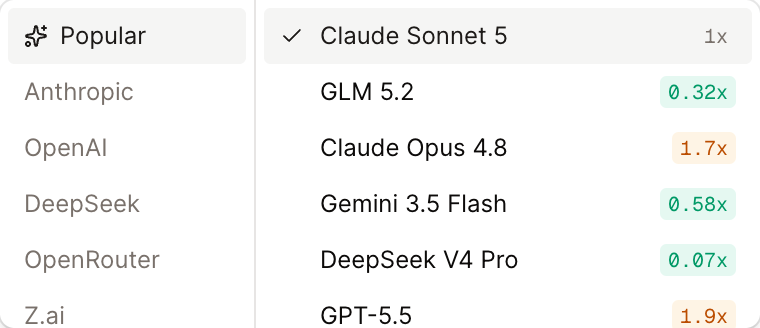
Why. The model doing the work is the single biggest factor in how good your results are. We moved the default to Claude Sonnet 5 — Anthropic's latest and most capable model — because it's a real step up in reasoning, and it comes with a much larger context window: room for far longer conversations and bigger documents without the agent losing the thread halfway through a task. For the kind of work Conol is built for — deep research, multi-step jobs, code that runs — that headroom matters.
How to use it. Nothing to set up: every new chat now starts on Claude Sonnet 5 automatically. If you want a different model for a specific task, open the model picker at the top of the chat and choose one — the switch applies immediately, even in the middle of a conversation, so you can start on one model and change your mind without losing context.
Tip
The model you pick is remembered for that chat, so a conversation keeps running on the same model each time you come back to it.
Resize the chat and sub-agent panels
Why. Different work wants a different layout. Reading a long report the agent just wrote is easier in a wide chat; editing a note side-by-side wants the chat out of the way. The old fixed-size presets couldn't cover that — so we replaced them with a handle you control directly.
How to use it. Grab the edge of the chat panel and drag it to exactly the width you want. The sub-agent panel resizes the same way. Whatever size you set sticks the next time you open it, so you only have to arrange things once.
Know when you're offline
Why. Conol notes sync in real time, which is great — until your connection drops and you can't tell whether what you're typing is actually being saved. That uncertainty is the worst part of losing Wi-Fi mid-thought.
How to use it. There's nothing to enable. The note editor now shows a clear indicator the moment your connection drops and clears it as soon as you're back, so you always know whether your edits are syncing.
Shared notes are truly read-only for viewers
Why. When you shared a note with view-only access, viewers could still type into it — but those edits were silently discarded, since they were never allowed to save. That's confusing for everyone: the viewer thinks they've made a change that isn't really there.
How to use it. This is automatic and based on the access you've granted. People with view-only access now see a locked editor with a banner that explains it's read-only, so there's no ambiguity. The lock is enforced on the live collaboration connection too — not just hidden in the interface — so viewer changes can't slip through. Owners and editors are unaffected.
Connector errors tell you what actually went wrong
Why. When a connected app — Gmail, Calendar, X, and the rest — ran into a problem, Conol used to show a generic "error executing the tool" with no hint of the cause. The most common cause was quietly expired access, which left you stuck with no idea that reconnecting would fix it.
How to use it. Conol now surfaces the real reason a connector failed, and when the cause is expired or revoked access, it flags that connection so you can reconnect it in a click from your settings. If a connected app suddenly stops working, check there first — the fix is usually a quick reconnect.
Big notes open faster
Why. Opening a large note was slower than it should have been because the page was downloading the note's contents twice — once it actually used, and once it never read.
How to use it. Automatic, nothing to do. We removed the redundant download, so heavy notes open noticeably quicker.
Fixes
- Pasted links are validated. Links you paste in are now checked the same way links added from the toolbar are, so a malformed URL can't slip into a note.
- Code fences work as you type. Start a fenced code block — three backticks and a language — and it becomes a proper code block the moment you press Enter, right in the markdown editor.
- Chinese and Japanese input stays intact. Writing with an IME in a note that has headings no longer scrambles your text — a render loop that interfered with composition is gone.
- Large note attachments upload reliably. Big files attached to a note now upload straight to storage without hitting size limits or dropping the upload.
That's 0.36.0. As always, everything ships to your workspace automatically — just open a new chat to start on Claude Sonnet 5.
← Back to blog